| Custom FAQ |
|
|
 Registering Registering |
|
The Administrator has turned off Registration for this forum. Only registered members are able to log in.If you click on an integrated advertisement, non-personally identifiable information (e.g., age, city, and gender) may be provided to an advertiser. You can opt out of such participation by modifying the setting in your profile. |
| Smilies |
|
You've probably seen others use smilies before in e-mail messages or other bulletin
board posts. Smilies are keyboard characters used to convey an emotion, such as a smile
 or a frown or a frown
 . This bulletin board
automatically converts certain text to a graphical representation when it is
inserted between brackets []. Here are the smilies that are currently
supported by Peeps Friends in Christ: . This bulletin board
automatically converts certain text to a graphical representation when it is
inserted between brackets []. Here are the smilies that are currently
supported by Peeps Friends in Christ:
 | sap |  | adorable |
 | ila |  | ila2 |
 | wta |  | ygla |
 | agapeland |  | agree |
 | amazing |  | amen |
 | amen2 |  | :(! |
 | angry |  | aday3 |
 | aday2 |  | aday5 |
 | aday4 |  | aday6 |
 | aday7 |  | aday8 |
 | aday9 |  | aday10 |
 | aday1 |  | irayb2 |
 | irayp |  | irayb |
 | irayp2 |  | iray |
 | irayg |  | ^ |
 | arrgh |  | asap |
 | asleep |  | sald |
 | augh |  | awesome |
 | siab |  | siag |
 | bbl |  | beautiful |
 | siabt |  | bsb |
 | :D |  | bb |
 | bb1 |  | sc1 |
 | bb2 |  | sc2 |
 | hb14b |  | hb14a |
 | hb26 |  | hb8 |
 | hb10 |  | hb11 |
 | hb31 |  | hb3 |
 | hb4 |  | hb1 |
 | hb5 |  | hb25 |
 | hb6 |  | hb7 |
 | hb9 |  | hb17 |
 | hb18 |  | hb19 |
 | hb20 |  | hb16 |
 | hb24 |  | hb23 |
 | hbcf |  | hb30 |
 | hb29 |  | hb28 |
 | hb2 |  | hb13 |
 | hb32 |  | hb27 |
 | hb22 |  | hb21 |
 | hb15 |  | hb12 |
 | oth |  | B) |
 | btts |  | bgb |
 | iasb |  | sab |
 | yasab |  | bte |
 | cmb |  | sob |
 | :I |  | sb |
 | sbb |  | btw |
 | scts |  | scu |
 | cheers |  | scb |
 | scc |  | clever |
 | :o) |  | brrr |
 | sc |  | congrats |
 | cb |  | 8D |
 | cool2 |  | cool1 |
 | cool |  | correct |
 | crying |  | crycold |
 | csc |  | socute |
 | toocute |  | cutie |
 | xx( |  | V |
 | disapprove |  | dislike |
 | dodgers |  | dd |
 | sd |  | duh2 |
 | 8 |  | embarrassed |
 | }:) |  | excellent |
 | excited |  | tibtfb |
 | smfac |  | fau |
 | fca |  | fhr |
 | fin |  | fnl |
 | fnz |  | fni |
 | fno |  | fph |
 | fsct |  | fsa |
 | fuk |  | fus |
 | srte |  | sfs |
 | gb |  | gia |
 | gime |  | ginp |
 | byhagih |  | gilymed |
 | igra |  | iatr |
 | ghm |  | wsaag |
 | wifhhms |  | gg |
 | gj |  | sgl |
 | sgn |  | sefight |
 | sgve |  | siag2 |
 | gsg |  | gi |
 | gr8 |  | gp |
 | 10 |  | grrr |
 | srh |  | sho |
 | shj |  | happy |
 | hhs |  | smiles |
 | ssh |  | iht |
 | shand |  | sih |
 | hagd |  | hh |
 | shw |  | sh5 |
 | hc |  | shm |
 | bhp2 |  | hbh |
 | bhb |  | bhb2 |
 | bh |  | bhg |
 | bhp |  | sgbh |
 | sgh |  | shh |
 | ltp2 |  | ltp1 |
 | huh |  | shu |
 | idc |  | idk2 |
 | idk |  | sidk |
 | sik |  | sib |
 | imho |  | incredible |
 | siat |  | jimr |
 | sgj |  | jdfm |
 | hia |  | hlimh |
 | hl |  | jly |
 | iatrjdotc |  | icdattc |
 | ilmj |  | siltwysj |
 | isjiy |  | isars |
 | owas |  | sogwhtb |
 | jk |  | jmo |
 | js |  | :X |
 | ykwim |  | cmu |
 | sfocl |  | giggle |
 | gtm |  | slit |
 | sroflol |  | tf |
 | lmk |  | slmad |
 | shbl |  | like2 |
 | like |  | lipstick |
 | sgly |  | gly |
 | hsg |  | hsp2 |
 | hsb2 |  | hsb3 |
 | hsy |  | htgl |
 | hso |  | hsb |
 | hsp |  | htgs |
 | hsr |  | lh |
 | ihi |  | sihy |
 | sily |  | silc |
 | hp2r |  | hp3r |
 | hp3l |  | hp2l |
 | hp1r |  | hp1l |
 | htg |  | htb |
 | iltp |  | ilt2 |
 | htp2 |  | htr |
 | ilt |  | htt |
 | htp |  | silymtc |
 | silyg |  | silyp2 |
 | silyh |  | silyb |
 | silyp |  | ly2 |
 | lkb |  | li |
 | sli |  | ht |
 | ly |  | lxo |
 | lovely |  | tgfy |
 | yaa |  | yal |
 | sytb |  | lhl |
 | lurker |  | ms |
 | smsst |  | smt |
 | myob |  | imy |
 | nasty |  | sn |
 | nm |  | nvn |
 | np2 |  | no2 |
 | snre |  | sinf |
 | omg |  | om |
 | mom |  | on |
 | son |  | okay |
 | oops2 |  | ouch |
 | sp |  | ps |
 | np |  | plz |
 | spb |  | pp |
 | iv |  | pv2 |
 | pv |  | yvc |
 | praise |  | gt |
| pgb |  | mgia |
 | hallelujah |  | hosanna |
 | ihpimh |  | pgfwabf |
 | pg |  | spg |
 | pwh1 |  | pwh2 |
 | hisw |  | ppamh |
 | ptl |  | pyits |
 | wgicgta |  | patp |
 | tp |  | adatp |
 | gwnmnl |  | kmiyw |
 | ap |  | sbpbl |
 | sbpb |  | chp |
 | gdmm |  | ghap |
 | giwyw |  | gig |
 | giic |  | gisf |
 | gnbhp |  | gnf |
 | gwh |  | gwnly |
 | gwwiao |  | hpatgw |
 | hht |  | hoyr |
 | hycip |  | siap |
 | iaph3 |  | iap |
 | iaph |  | iaph2 |
 | iaph1 |  | ibim |
 | itygnmw |  | ityl |
 | jyip |  | jth |
 | lap |  | mhih |
 | pp2 |  | pjuip |
 | pp3 |  | pc |
 | pfc |  | pfgp |
 | pfp |  | pfp2 |
 | pfgg |  | pfgh |
 | pfgw | 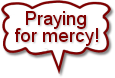 | pfm |
 | pfst | 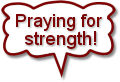 | pfs |
 | pfw |  | pfy |
 | tyfycp |  | tyfypp |
 | tgfhw |  | tgwy |
 | tg | 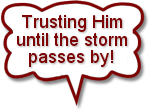 | thutspb |
 | th |  | wag |
 | wahfy | 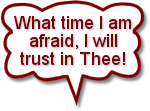 | wtimaiwtit |
 | yana |  | precious |
 | bp |  | priceless |
 | purity |  | ? |
 | rt |  | really |
| :( |  | hbs |
 | ;(2 |  | hsrb |
 | soos |  | ;(1 |
 | ;( |  | shhh |
 | :O | | som |
 | shocked |  | 8) |
 | sick |  | doc |
 | sfb |  | nurse |
 | sigh2 |  | kt |
 | |) |  | sleepy |
| :) |  | sniff |
 | sias |  | sosorry |
 | ycfs |  | tantrum |
 | terrific |  | tgif |
 | ty |  | ty1 |
 | ty2 |  | ty3 |
 | thinking |  | tired |
 | sht |  | tbh |
 | :P |  | snana |
 | tmi |  | ugh2 |
 | uo |  | unbelievable |
 | su |  | swb |
 | swu |  | swi |
 | swiw |  | wave |
 | swtg |  | yw |
 | we |  | whew |
 | idw |  | ;) |
 | winks |  | wonderful |
 | swh |  | wow2 |
 | wow3 |  | yds |
 | yg |  | yea |
 | yeah2 |  | yidt |
 | yes2 |  | yikes |
 | sygg |  | syr |
 | yr |  | yk |
 | lsy |  | sy |
|
| Creating a Hyperlink in your message |
|
You can easily add a hyperlink to your message.
All that you need to do is type the URL (https://peeps.vip/activity/), and it will automatically be converted to a URL (https://peeps.vip/activity/)!
The trick here is to make sure you prefix your URL with the http://, https://, ftp://, or file://
You can also add a mailto link to your message by typing in your e-mail address.
This Example:
me@home.com
Outputs this:
me@home.com
Another way to add hyperlinks is to use the [url]linkto[/url] tags
This Example:
[url]https://peeps.vip/activity/[/url] takes you home!
Outputs This:
https://peeps.vip/activity/ takes you home!
If you use this tag: [url="linkto"]description[/url] you can add a description to the link.
This Example:
Take me to [url="https://peeps.vip/activity/"]Peeps Friends in Christ[/url]
Outputs This:
Take me to Peeps Friends in Christ
This Example:
If you have a question [url="me@home.com"]E-Mail Me[/url]
Outputs This:
If you have a question EMail Me
You can make clickable images by combining the [url="linkto"]description[/url] and [img]image_url[/img] tags
This Example:
[url="https://peeps.vip/activity/"][img]themes/Turquoise/beta_Turquoise.png[/img][/url]
Outputs This:

|
| How to format text with Bold, Italic, Quote, etc... |
|
There are several Forum Codes you may use to change the appearance
of your text. Following is the list of codes currently available:
Bold: Enclose your text with [b] and [/b] . Example: This is [b]bold[/b] text. = This is bold text.
Italic: Enclose your text with [i] and [/i] . Example: This is [i]italic[/i] text. = This is italic text.
Underline: Enclose your text with [u] and [/u]. Example: This is [u]underline[/u] text. = This is underline text.
Aligning Text Left: Enclose your text with [left] and [/left]
Aligning Text Center: Enclose your text with [center] and [/center]
Aligning Text Right: Enclose your text with [right] and [/right]
Striking Text: Enclose your text with [s] and [/s]
Example: [s]mistake[/s] = mistake
Horizontal Rule: Place a horizontal line in your post with [hr]
Example: [hr] =
Font Colors:
Enclose your text with [fontcolor] and [/fontcolor]
All the named colors of HTML5 are supported:
Example: [aliceblue]Text[/aliceblue] = Text
Example: [antiquewhite]Text[/antiquewhite] = Text
Example: [aqua]Text[/aqua] = Text
Example: [aquamarine]Text[/aquamarine] = Text
Example: [azure]Text[/azure] = Text
Example: [beige]Text[/beige] = Text
Example: [bisque]Text[/bisque] = Text
Example: [black]Text[/black] = Text
Example: [blanchedalmond]Text[/blanchedalmond] = Text
Example: [blue]Text[/blue] = Text
Example: [blueviolet]Text[/blueviolet] = Text
Example: [brown]Text[/brown] = Text
Example: [burlywood]Text[/burlywood] = Text
Example: [cadetblue]Text[/cadetblue] = Text
Example: [chartreuse]Text[/chartreuse] = Text
Example: [chocolate]Text[/chocolate] = Text
Example: [coral]Text[/coral] = Text
Example: [cornflowerblue]Text[/cornflowerblue] = Text
Example: [cornsilk]Text[/cornsilk] = Text
Example: [crimson]Text[/crimson] = Text
Example: [cyan]Text[/cyan] = Text
Example: [darkblue]Text[/darkblue] = Text
Example: [darkcyan]Text[/darkcyan] = Text
Example: [darkgoldenrod]Text[/darkgoldenrod] = Text
Example: [darkgray]Text[/darkgray] = Text
Example: [darkgreen]Text[/darkgreen] = Text
Example: [darkkhaki]Text[/darkkhaki] = Text
Example: [darkmagenta]Text[/darkmagenta] = Text
Example: [darkolivegreen]Text[/darkolivegreen] = Text
Example: [darkorange]Text[/darkorange] = Text
Example: [darkorchid]Text[/darkorchid] = Text
Example: [darkred]Text[/darkred] = Text
Example: [darksalmon]Text[/darksalmon] = Text
Example: [darkseagreen]Text[/darkseagreen] = Text
Example: [darkslateblue]Text[/darkslateblue] = Text
Example: [darkslategray]Text[/darkslategray] = Text
Example: [darkturquoise]Text[/darkturquoise] = Text
Example: [darkviolet]Text[/darkviolet] = Text
Example: [deeppink]Text[/deeppink] = Text
Example: [deepskyblue]Text[/deepskyblue] = Text
Example: [dimgray]Text[/dimgray] = Text
Example: [dodgerblue]Text[/dodgerblue] = Text
Example: [firebrick]Text[/firebrick] = Text
Example: [floralwhite]Text[/floralwhite] = Text
Example: [forestgreen]Text[/forestgreen] = Text
Example: [fuchsia]Text[/fuchsia] = Text
Example: [gainsboro]Text[/gainsboro] = Text
Example: [ghostwhite]Text[/ghostwhite] = Text
Example: [gold]Text[/gold] = Text
Example: [goldenrod]Text[/goldenrod] = Text
Example: [gray]Text[/gray] = Text
Example: [green]Text[/green] = Text
Example: [greenyellow]Text[/greenyellow] = Text
Example: [honeydew]Text[/honeydew] = Text
Example: [hotpink]Text[/hotpink] = Text
Example: [indianred]Text[/indianred] = Text
Example: [indigo]Text[/indigo] = Text
Example: [ivory]Text[/ivory] = Text
Example: [khaki]Text[/khaki] = Text
Example: [lavender]Text[/lavender] = Text
Example: [lavenderblush]Text[/lavenderblush] = Text
Example: [lawngreen]Text[/lawngreen] = Text
Example: [lemonchiffon]Text[/lemonchiffon] = Text
Example: [lightblue]Text[/lightblue] = Text
Example: [lightcoral]Text[/lightcoral] = Text
Example: [lightcyan]Text[/lightcyan] = Text
Example: [lightgoldenrodyellow]Text[/lightgoldenrodyellow] = Text
Example: [lightgray]Text[/lightgray] = Text
Example: [lightgreen]Text[/lightgreen] = Text
Example: [lightpink]Text[/lightpink] = Text
Example: [lightsalmon]Text[/lightsalmon] = Text
Example: [lightseagreen]Text[/lightseagreen] = Text
Example: [lightskyblue]Text[/lightskyblue] = Text
Example: [lightslategray]Text[/lightslategray] = Text
Example: [lightsteelblue]Text[/lightsteelblue] = Text
Example: [lightyellow]Text[/lightyellow] = Text
Example: [lime]Text[/lime] = Text
Example: [limegreen]Text[/limegreen] = Text
Example: [linen]Text[/linen] = Text
Example: [magenta]Text[/magenta] = Text
Example: [maroon]Text[/maroon] = Text
Example: [mediumaquamarine]Text[/mediumaquamarine] = Text
Example: [mediumblue]Text[/mediumblue] = Text
Example: [mediumorchid]Text[/mediumorchid] = Text
Example: [mediumpurple]Text[/mediumpurple] = Text
Example: [mediumseagreen]Text[/mediumseagreen] = Text
Example: [mediumslateblue]Text[/mediumslateblue] = Text
Example: [mediumspringgreen]Text[/mediumspringgreen] = Text
Example: [mediumturquoise]Text[/mediumturquoise] = Text
Example: [mediumvioletred]Text[/mediumvioletred] = Text
Example: [midnightblue]Text[/midnightblue] = Text
Example: [mintcream]Text[/mintcream] = Text
Example: [mistyrose]Text[/mistyrose] = Text
Example: [moccasin]Text[/moccasin] = Text
Example: [navajowhite]Text[/navajowhite] = Text
Example: [navy]Text[/navy] = Text
Example: [oldlace]Text[/oldlace] = Text
Example: [olive]Text[/olive] = Text
Example: [olivedrab]Text[/olivedrab] = Text
Example: [olivegreen]Text[/olivegreen] = Text
Example: [orange]Text[/orange] = Text
Example: [orangered]Text[/orangered] = Text
Example: [orchid]Text[/orchid] = Text
Example: [palegoldenrod]Text[/palegoldenrod] = Text
Example: [palegreen]Text[/palegreen] = Text
Example: [paleturquoise]Text[/paleturquoise] = Text
Example: [palevioletred]Text[/palevioletred] = Text
Example: [papayawhip]Text[/papayawhip] = Text
Example: [peachpuff]Text[/peachpuff] = Text
Example: [peru]Text[/peru] = Text
Example: [pink]Text[/pink] = Text
Example: [plum]Text[/plum] = Text
Example: [powderblue]Text[/powderblue] = Text
Example: [purple]Text[/purple] = Text
Example: [rebeccapurple]Text[/rebeccapurple] = Text
Example: [red]Text[/red] = Text
Example: [rosybrown]Text[/rosybrown] = Text
Example: [royalblue]Text[/royalblue] = Text
Example: [saddlebrown]Text[/saddlebrown] = Text
Example: [salmon]Text[/salmon] = Text
Example: [sandybrown]Text[/sandybrown] = Text
Example: [seagreen]Text[/seagreen] = Text
Example: [seashell]Text[/seashell] = Text
Example: [sienna]Text[/sienna] = Text
Example: [silver]Text[/silver] = Text
Example: [skyblue]Text[/skyblue] = Text
Example: [slateblue]Text[/slateblue] = Text
Example: [slategray]Text[/slategray] = Text
Example: [snow]Text[/snow] = Text
Example: [springgreen]Text[/springgreen] = Text
Example: [steelblue]Text[/steelblue] = Text
Example: [tan]Text[/tan] = Text
Example: [teal]Text[/teal] = Text
Example: [thistle]Text[/thistle] = Text
Example: [tomato]Text[/tomato] = Text
Example: [turquoise]Text[/turquoise] = Text
Example: [violet]Text[/violet] = Text
Example: [wheat]Text[/wheat] = Text
Example: [white]Text[/white] = Text
Example: [whitesmoke]Text[/whitesmoke] = Text
Example: [yellow]Text[/yellow] = Text
Example: [yellowgreen]Text[/yellowgreen] = Text
Headings: Enclose your text with [hnumber] and [/hn]
|
Example: [h1]Text[/h1] =
|
Text
|
|
Example: [h2]Text[/h2] =
|
Text
|
|
Example: [h3]Text[/h3] =
|
Text
|
|
Example: [h4]Text[/h4] =
|
Text
|
|
Example: [h5]Text[/h5] =
|
Text
|
|
Example: [h6]Text[/h6] =
|
Text
|
Font Sizes:
Example: [size=1]Text[/size=1] = Text
Example: [size=2]Text[/size=2] = Text
Example: [size=3]Text[/size=3] = Text
Example: [size=4]Text[/size=4] = Text
Example: [size=5]Text[/size=5] = Text
Example: [size=6]Text[/size=6] = Text
Bulleted List: [list] and [/list], and items in list with [*] and [/*].
Ordered Alpha List: [list=a] and [/list=a], and items in list with [*] and [/*].
Ordered Number List: [list=1] and [/list=1], and items in list with [*] and [/*].
Code: Enclose your text with [code] and [/code].
Quote: Enclose your text with [quote] and [/quote].
Images: Enclose the address with one of the following: - [img] and [/img]
- [img=right] and [/img=right]
- [img=left] and [/img=left]
|
| Moderators |
|
Moderators control individual forums. They may edit, delete, or prune any posts in their forums. |
| Cookies |
|
These Forums use cookies to store the following information: the last time you logged in, your user name, encrypted password, scroll directions, and any preferences you have made whether or not to view categories within the forum. These cookies are stored on your hard drive. Cookies are not used to track your movement or perform any function other than to enhance your use of these forums. If you have not enabled cookies in your browser, many of these time-saving features will not work properly. Also, you need to have cookies enabled if you want to enter a private forum or post a topic/reply. You may delete all cookies set by these forums by clicking the "logout" button (or your avatar image, if used in lieu of a logout button) at the top of any page.
|
| Active Topics |
|
Active Topics are tracked by cookies. When you click on the "active topics" link, a page is generated listing all topics that have been posted since your last visit to these forums (or approximately 20 minutes).
|
| Editing Your Posts |
|
You may edit or delete your own posts at any time. Just go to the topic where the post to be edited or deleted is located and you will see an edit or delete icon (  ) on the line that begins "posted on..." Click on this icon to edit or delete the post. No one else can edit your post, except for the forum Moderator or the forum Administrator. A note is generated at the bottom of each edited post displaying when and by whom the post was edited. ) on the line that begins "posted on..." Click on this icon to edit or delete the post. No one else can edit your post, except for the forum Moderator or the forum Administrator. A note is generated at the bottom of each edited post displaying when and by whom the post was edited. |
| Attaching Files |
|
For security reasons, you may not attach files to any posts. However, you may cut and paste text into your post. |
| Searching For Specific Posts |
|
You may search for specific posts based on a word or words found in the posts, user name, date, and particular forum(s). Simply click on the "search" link at the top of most pages. |
| Editing Your Profile |
|
You may easily change any information stored in your registration profile by using the "profile" link located near the top of each page. Simply identify yourself by typing your Username and Password and all of your profile information will appear on screen. You may edit any information (except your Username). |
| Signatures |
|
You may attach signatures to the end of your posts when you post either a New Topic or Reply. Your signature is editable by clicking on "profile" at the top of any forum page and entering your Username and Password.
NOTE: HTML can't be used in Signatures. |
| Censoring Posts |
|
The forum does censor certain words that may be posted; however, this censoring is not an exact science, and is being done based on the words that are being screened, so certain words may be censored out of context. By default, words that are censored are replaced with asterisks. |
| What does it mean if a forum has moderation enabled? |
|
Moderation: This feature allows the administrator or moderators to "Approve", "Hold" or "Delete" a users post before it is shown to the public.
Approve: Only the administrators or the moderators will be able to approve a post made to a moderated forum. When the post is approved, it will be made viewable to the public.
Hold: When a user posts a message to a moderated forum, the message is automatically put on hold until a moderator or an administrator approves of the post. No one will be able to view the post while it is put on hold.
NOTE: Authors of the post will be able to edit their post during this mode.
Delete: If the administrator or moderator chooses this option, the post will be deleted and an e-mail will be sent to the poster of the message, informing them that their post was not approved. The administrator/moderator will be able to give their reason for not approving the post in the e-mail.
|
| What is COPPA? |
|
The Children's Online Privacy Protection Act and Rule apply to individually identifiable information about a child that is collected online, such as full name, home address, e-mail address, telephone number or any other information that would allow someone to identify or contact the child. The Act and Rule also cover other types of information -- for example, hobbies, interests and information collected through cookies or other types of tracking mechanisms -- when they are tied to individually identifiable information. More information can be found here. |
| Getting Your Own Forum |
|
The most recent version of this Snitz Forum can be downloaded at this Internet web site.
NOTE: The software is highly configurable, and the baseline Snitz Forum may not have all the features this forum does. |
 Singing News Radio
 Peeps Chatroom (0)
 Need Help
 Recent Activity